
Diamra runs as a panel inside your own website. Customers stay on your domain, design their piece in your colors, place the order, and never see the word Diamra. The whole thing is two lines of HTML and a list of sites you approve. Here is the full setup.
Open the Integration tab on your bench
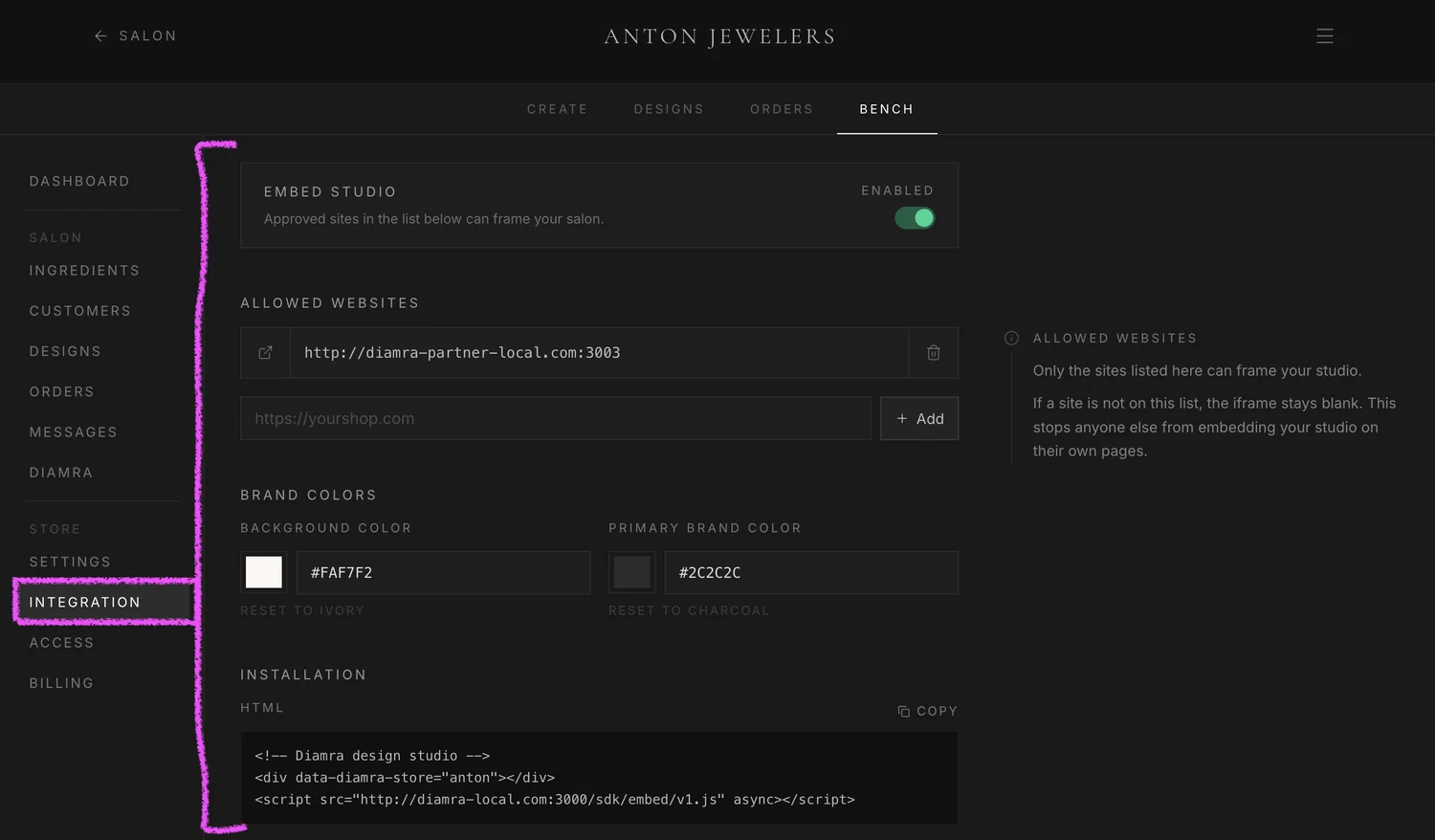
Sign in to your bench at your store address and open the Integration tab in the left rail. Everything you need to embed the studio lives on this one page. Allowlist, brand colors, install snippet, all in one place.
Turn on Embed Studio
At the top of the panel, flip the Embed Studio toggle on. Until you do, the rest of the panel is greyed out and no website can frame your studio. Once it is on, the lower sections come alive and your settings start saving as you type.

Add the websites that can frame your studio
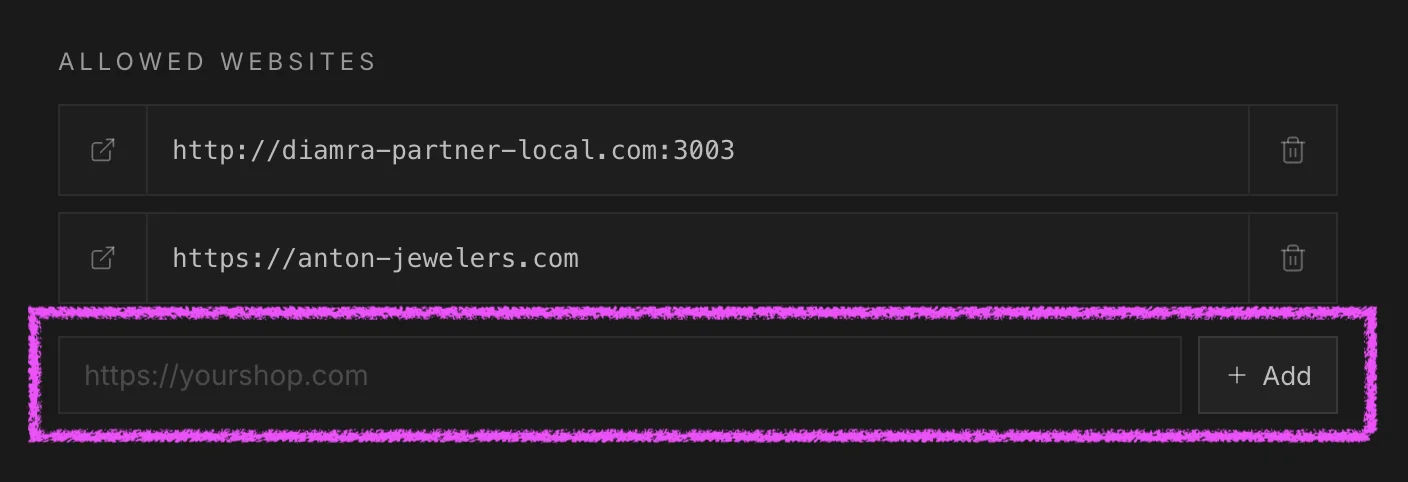
Type the full URL of the website that will host the studio and tap Add. Use the exact form your customers visit, with https:// and no trailing slash. One URL is enough. If you only sell from a single site, just add that one and you are done. Add more later only if you actually need them, for example a staging environment or a second brand on its own domain. Every time the studio is loaded, we check which website is requesting it. If the requesting URL is not in your allowlist, we deny the request and the iframe stays blank. So even if someone copies your snippet onto their own site, your studio will not load there.
Pick brand colors that match your site
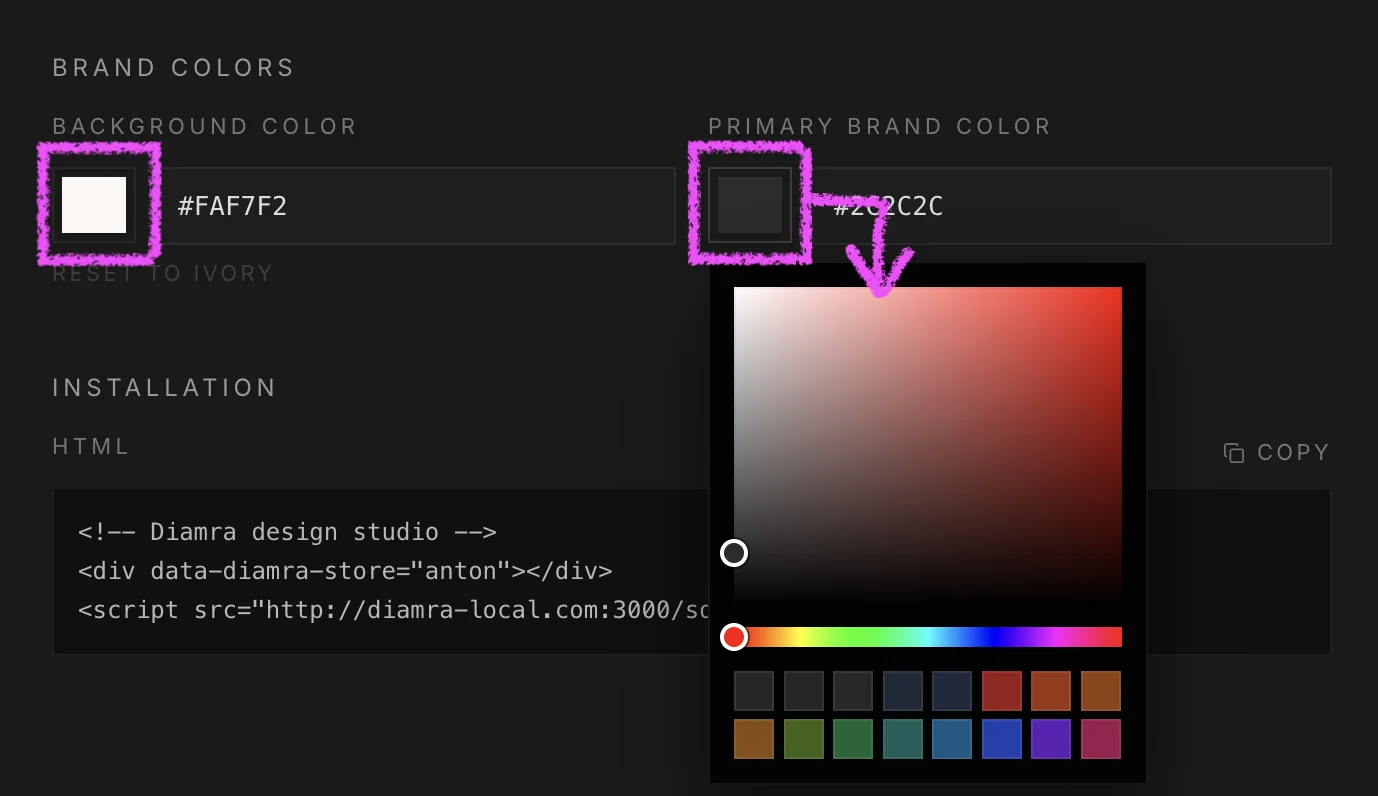
Set the background color of the canvas behind the studio, and the primary color used for buttons and primary actions. Pick tones that already live on your site so the studio reads as part of your page, not a third-party widget. Pick from the swatches, drag the color picker, or type a hex value. Your changes save automatically.
Copy the install snippet
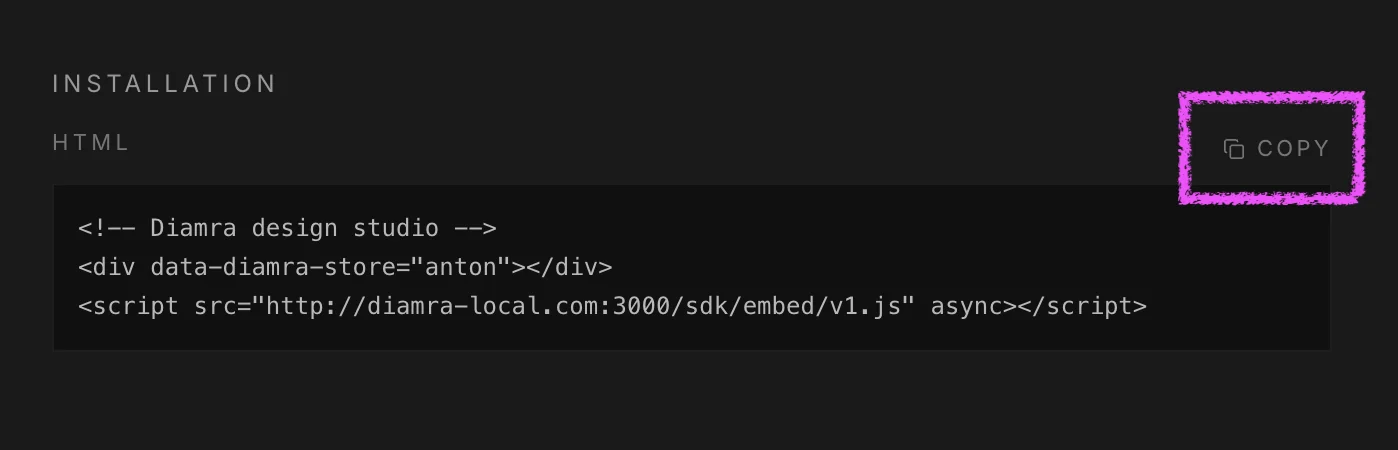
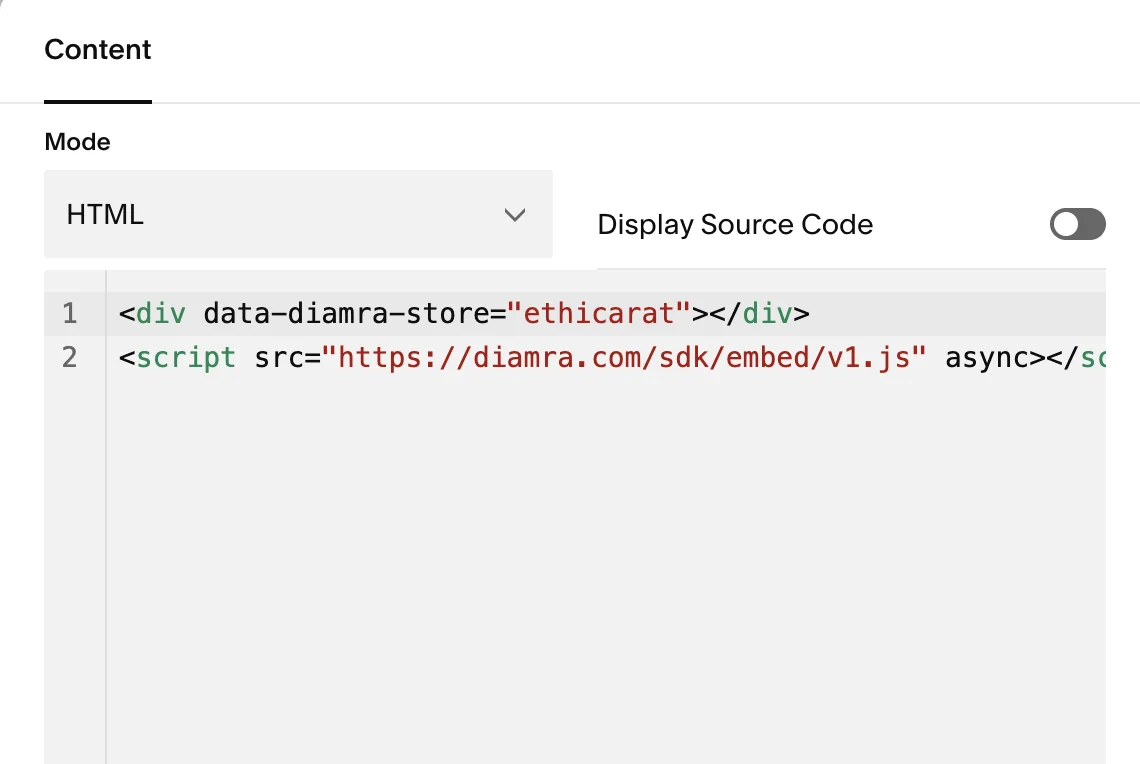
At the bottom of the panel you will see two lines of HTML. The first line is a placeholder div the studio will mount into. The second is a script tag that loads our hosted SDK and creates the iframe for you. Tap Copy to grab both lines at once.
Paste the snippet where the studio should appear
Open your website's editor and paste both lines into the page where you want the studio to live. In Webflow or Wix, drop them into an Embed or Custom HTML block. In Squarespace, use a Code Block. In WordPress, use a Custom HTML block in the Gutenberg editor. In a hand-coded site, paste them straight into the page source. Save and publish.
Open your site and check it works
Visit the page on your live site. The studio should load in place of the snippet, sized to fit the page, and grow or shrink as customers move between tabs. Try designing a piece end to end, all the way to the order step. Everything happens inside the iframe, on your domain.

Setup ends here. Customers who land on your page can now design their piece, get a real-time price, and place the order without ever leaving your domain. The studio updates itself, your allowlist controls who can embed, and your brand colors keep the studio looking like part of your site.