
Every design a customer creates needs a number next to it. That is what an estimate is. Diamra builds it from two things: the prices you have set on each ingredient in your catalog, and three percentages on your store settings for finding, labor, and markup. Set those once and every design from then on comes back with a real-money price tag in about ten seconds.
Open an ingredient and set a fixed price
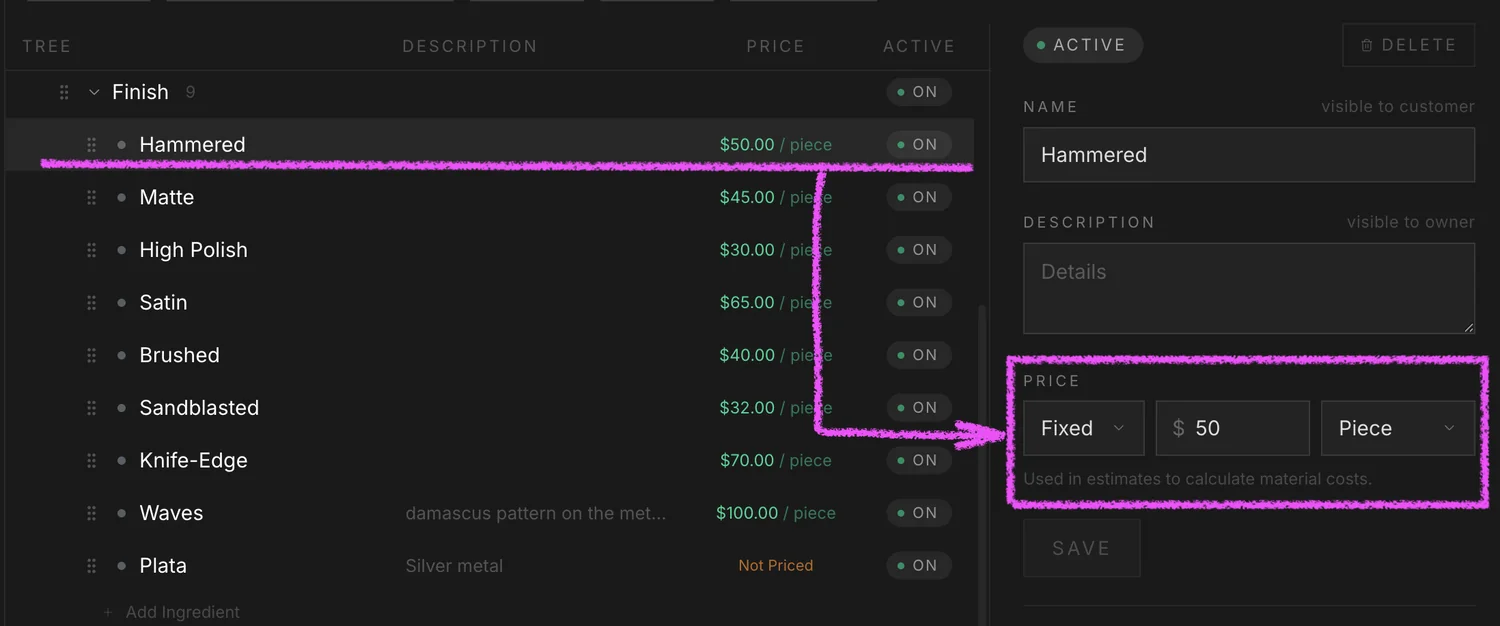
Open the Ingredients page on your bench and pick a leaf ingredient, the kind that actually shows up in a design, like 18K Gold or Round Brilliant Diamond. The detail panel on the right has a Price block. Pick the Fixed mode, type the price, and pick the unit it is priced in: Gram for metals, Carat for gemstones, Piece for pearls, findings, and other flat-cost items. Save by tabbing out of the field. Anything you skip is fine, but ingredients without a price will get guessed by the AI later and flagged in orange instead of green.
Or link an ingredient to the live market price
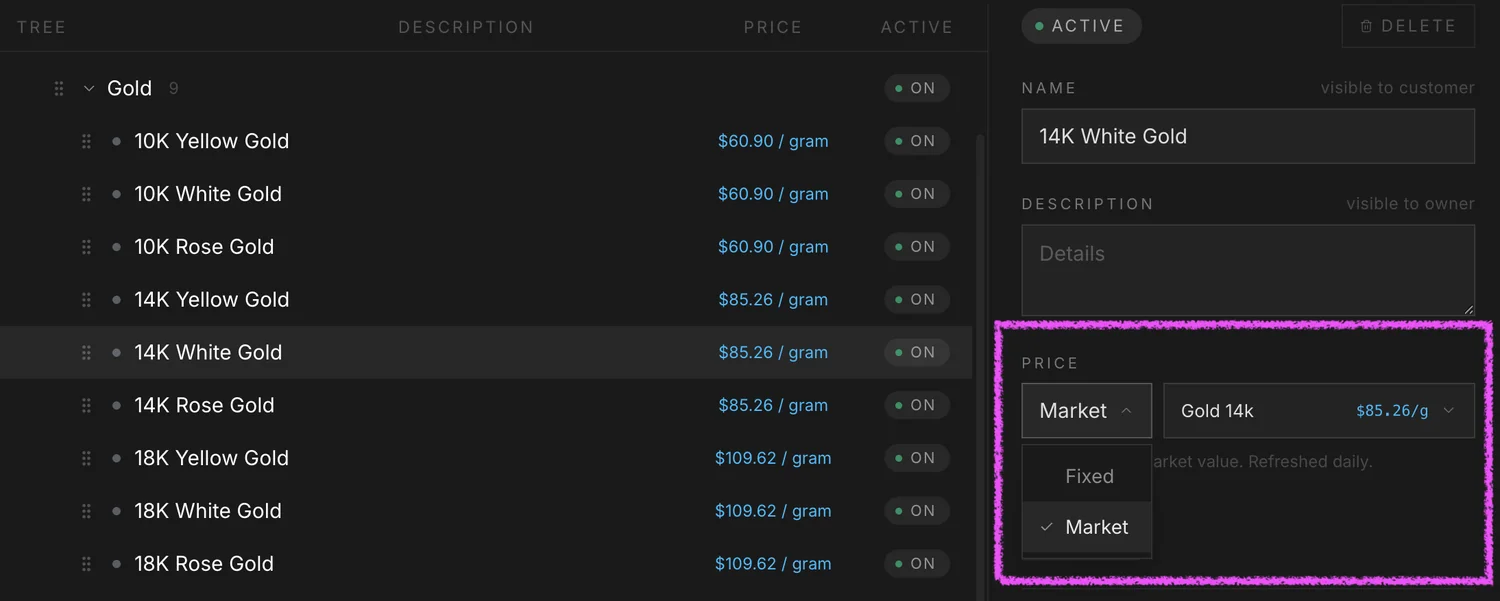
For metals and other commodities that move every day, switch the price block from Fixed to Market. A picker opens with live values from our daily feed. Pick the one that fits your ingredient and the price tracks itself from then on. You do not have to come back and update it. Use this for gold, silver, and platinum where the spot price changes constantly. Use Fixed for stones, findings, and anything you set yourself.
Set your store percentages
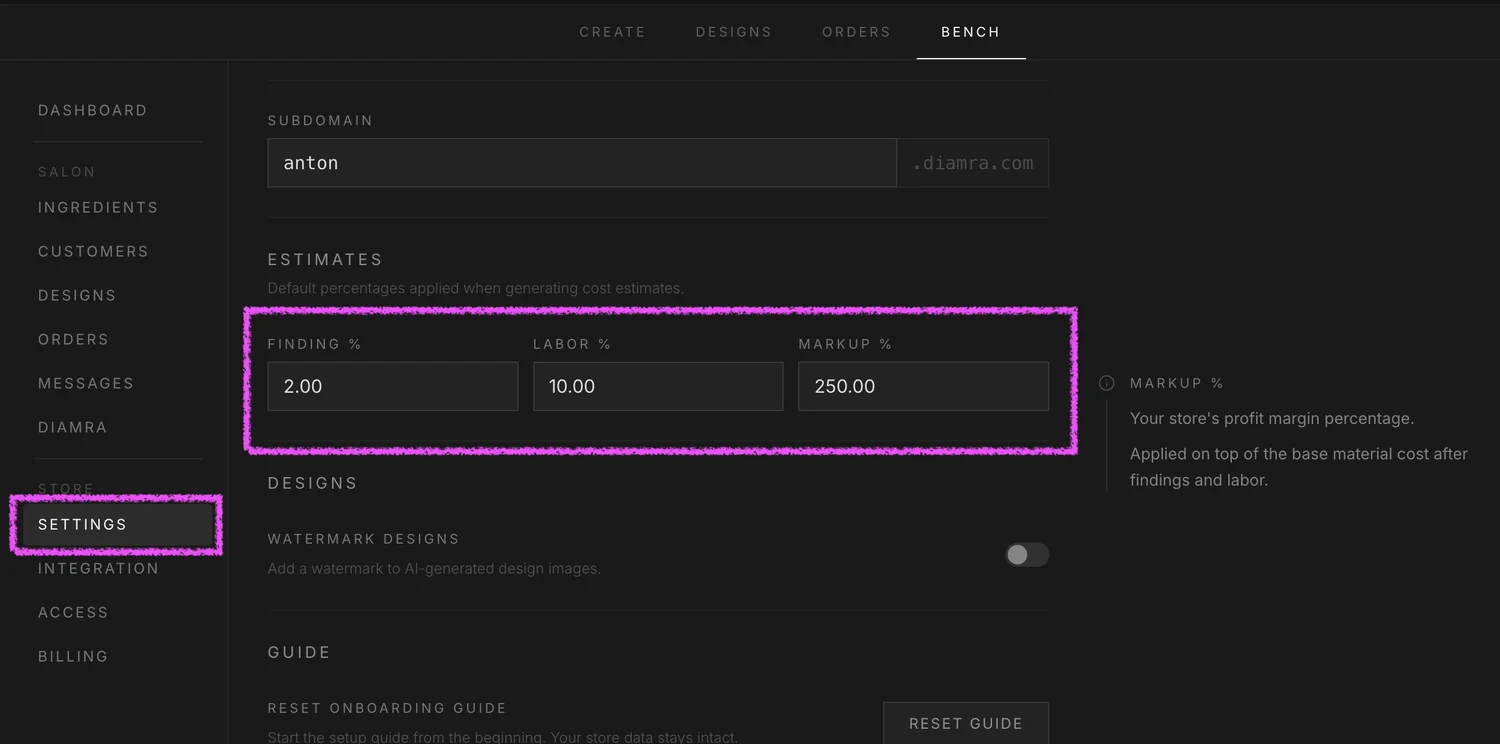
On the Settings page, find the Pricing section. Three percentages sit next to each other: Finding, Labor, and Markup. Finding covers the small parts that go into every piece, prongs, posts, jump rings, things you do not price as ingredients. Labor covers the time at the bench. Markup is your margin on top. Set them once and every estimate from then on uses these numbers. Type the value, tab out, the field saves on its own.
Generate an estimate
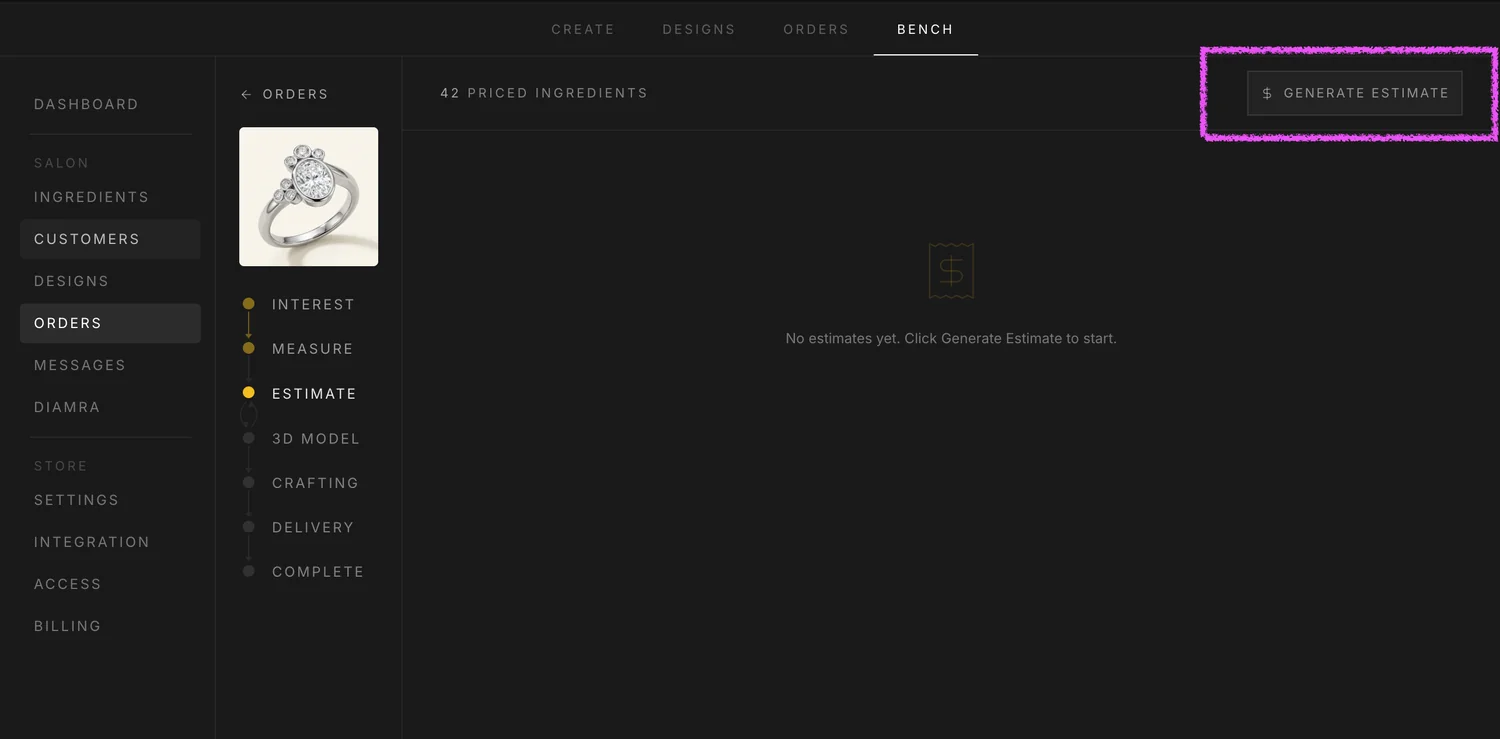
Open any order on your bench and scroll to the Estimate panel. Press Generate Estimate. The AI reads the design photo, picks out every visible material, weighs each one against your priced catalog, and runs the four-line math. It takes about ten to fifteen seconds. A countdown ticks down so you know it is working. When it lands, a card slides into view with every line item, every percentage, and the total at the bottom.
Read the breakdown, watch the colors
The card has two parts. Top is the materials table, one row per ingredient the AI saw in the design. Bottom is the cost summary: base cost, finding, labor, markup, total. The colors on the rows tell you everything you need to know about how confident the number is.
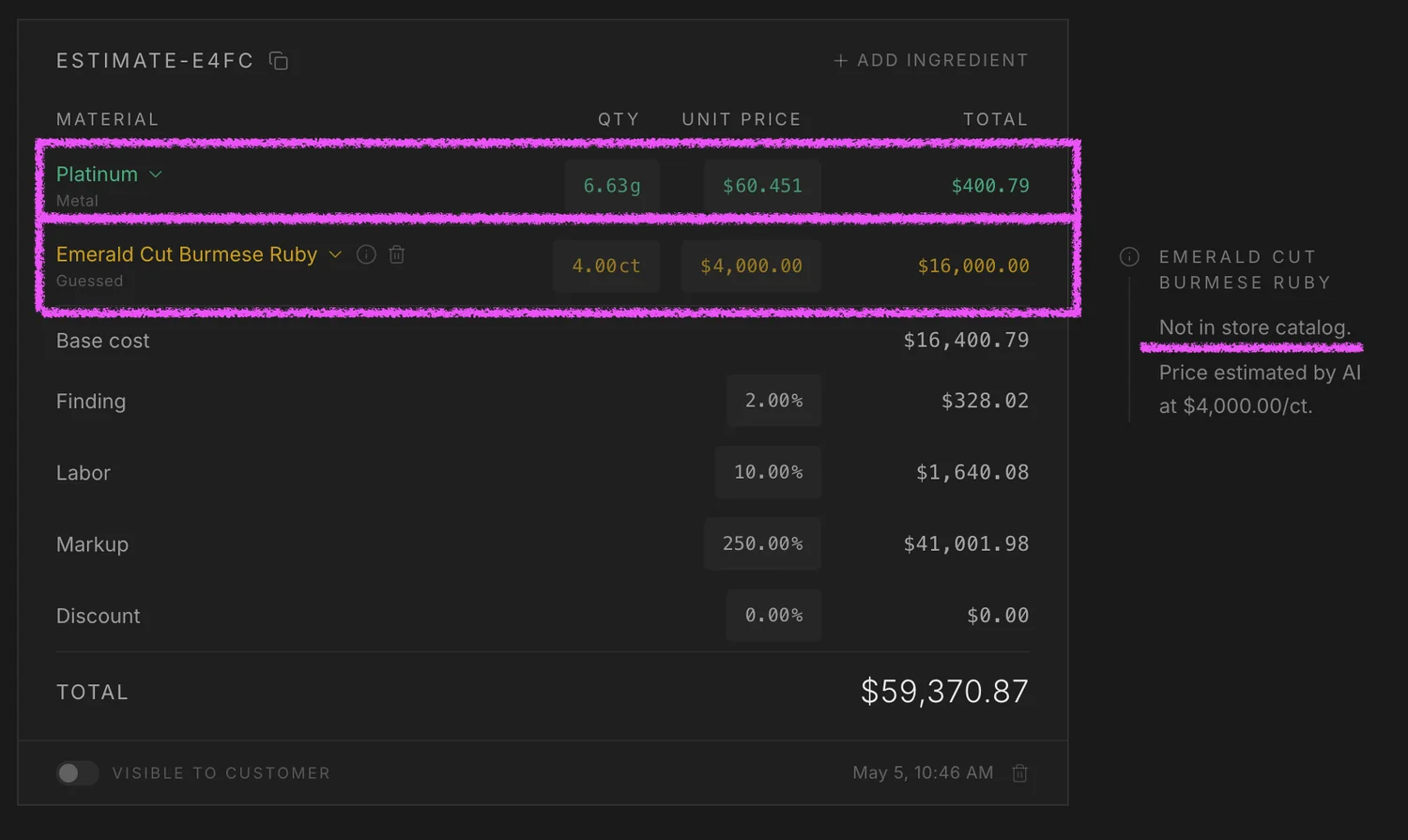
Tighten the estimate by closing gaps
Every orange row is a signal. It means the AI saw something on the design that your catalog does not have a price for, so it had to guess. Add the missing ingredient on the Ingredients page, give it a price, then come back to the order and press Generate Estimate again. The new card lands with that row turned green and the total locked in. Two or three rounds of this and your estimates stop guessing entirely. From then on, every design you generate against your catalog comes back with a number you trust the second it arrives.
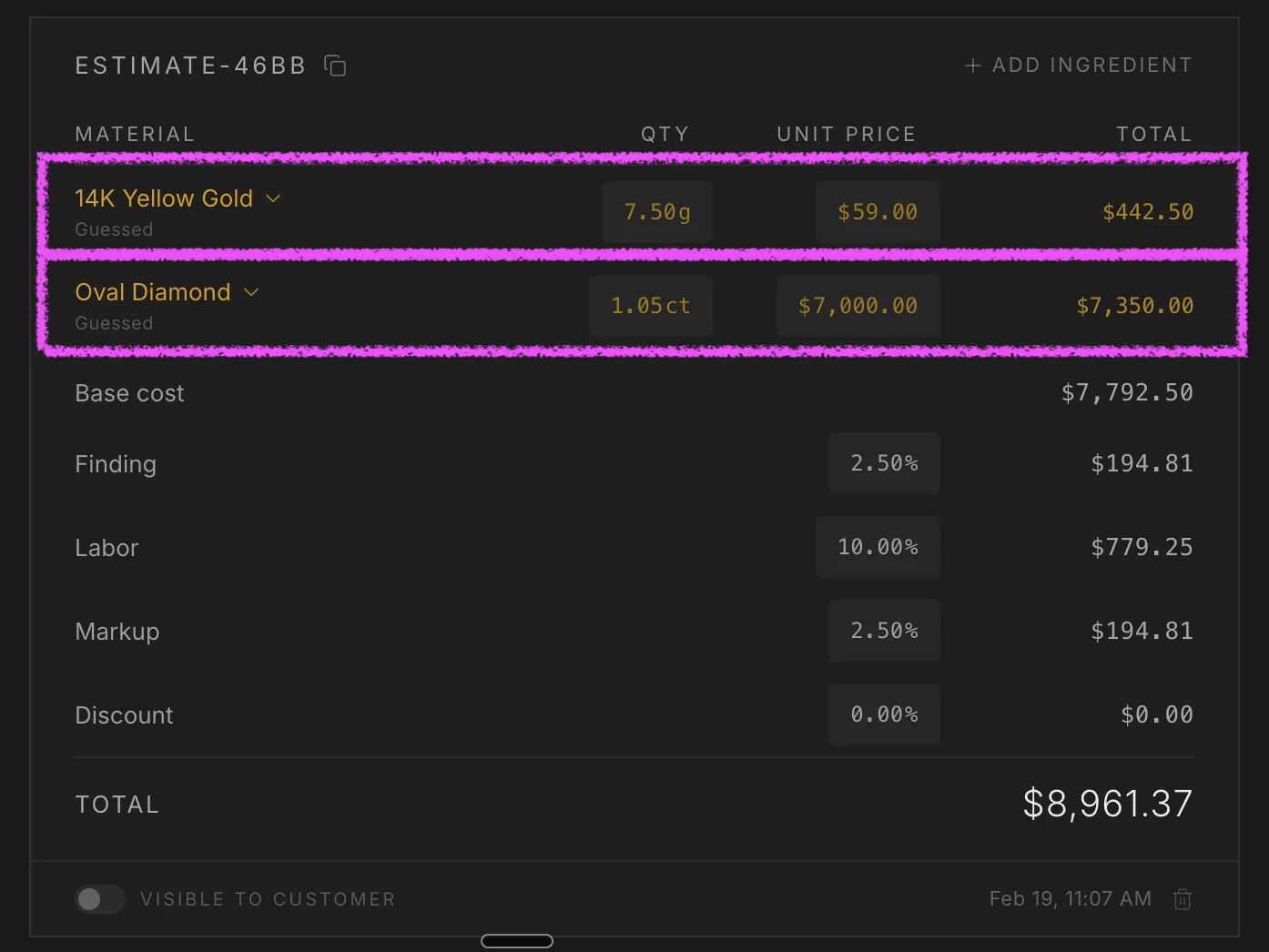
That is the loop. Set a price, link a market value, set your three percentages, press one button. The card that comes back is auditable, frozen in time, and as accurate as the catalog you fed it. The more you fill in, the fewer orange rows show up. The fewer orange rows show up, the closer every quote sits to the real cost of the piece.