
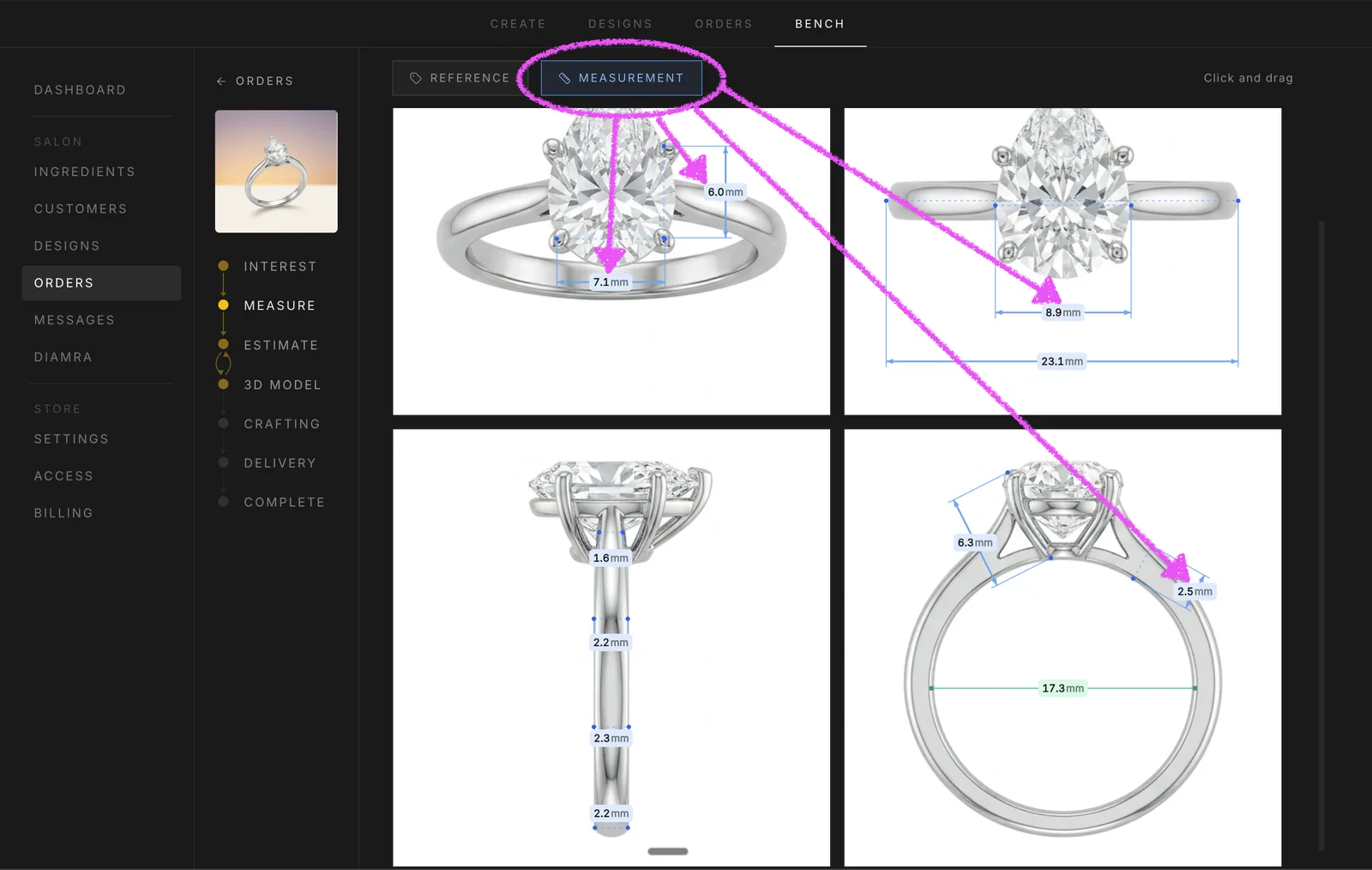
A customer falls for a generated design and the next question is always the same: how big is it? The Measure tool answers it. You draw one line on one view, type its real size in millimeters, and every other measurement you add picks up the scale automatically. Your customer ends up with a piece shown from four sides with exact numbers on every line. Here is how to use it end to end.
Open a design and switch to Measure
Open any design you have generated on the bench and switch to the Measure tab. You land on an empty canvas with four tile slots waiting for Front, Top, Left, and Bottom projections. This is the workspace where everything happens.
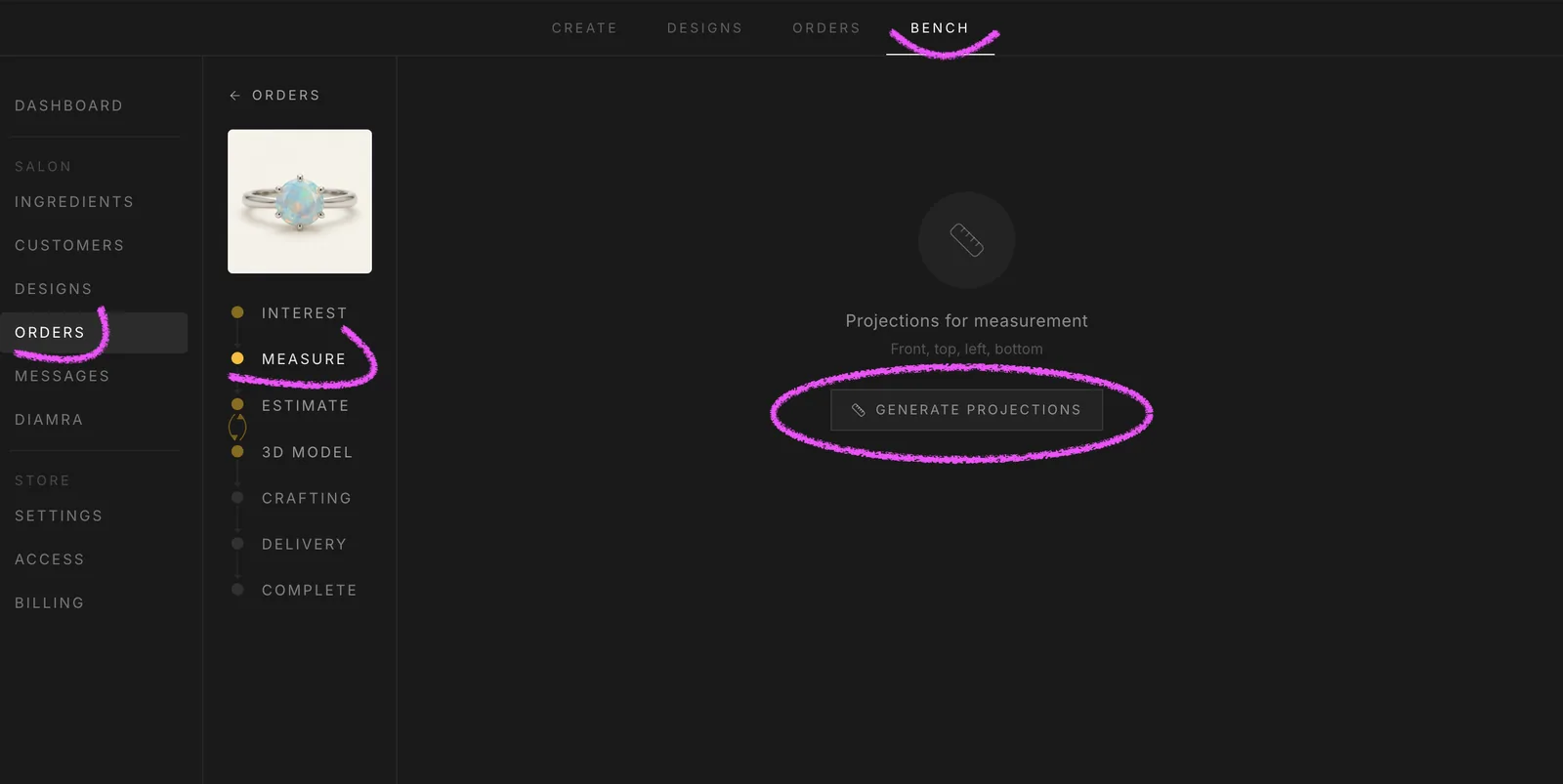
Generate the four projections
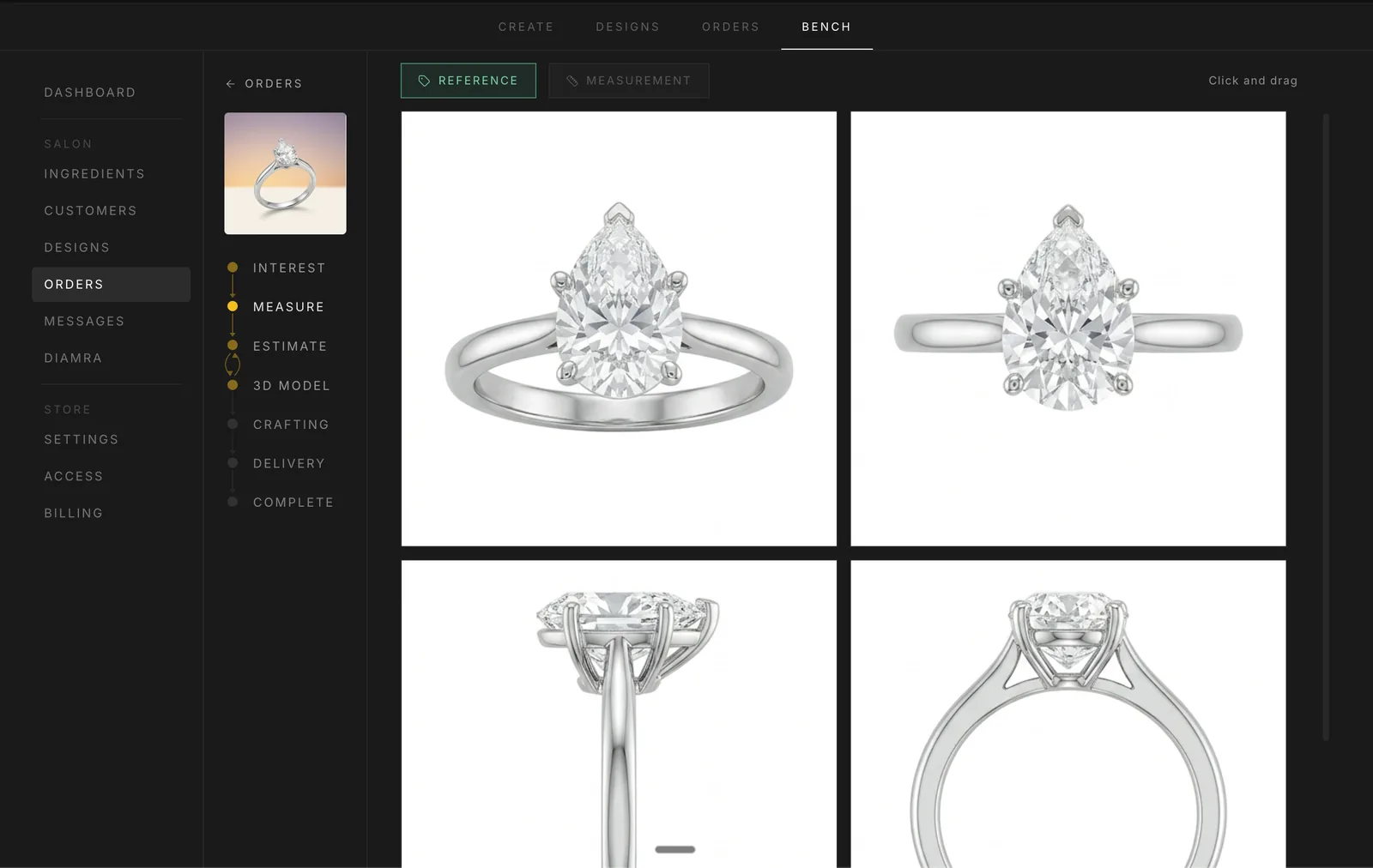
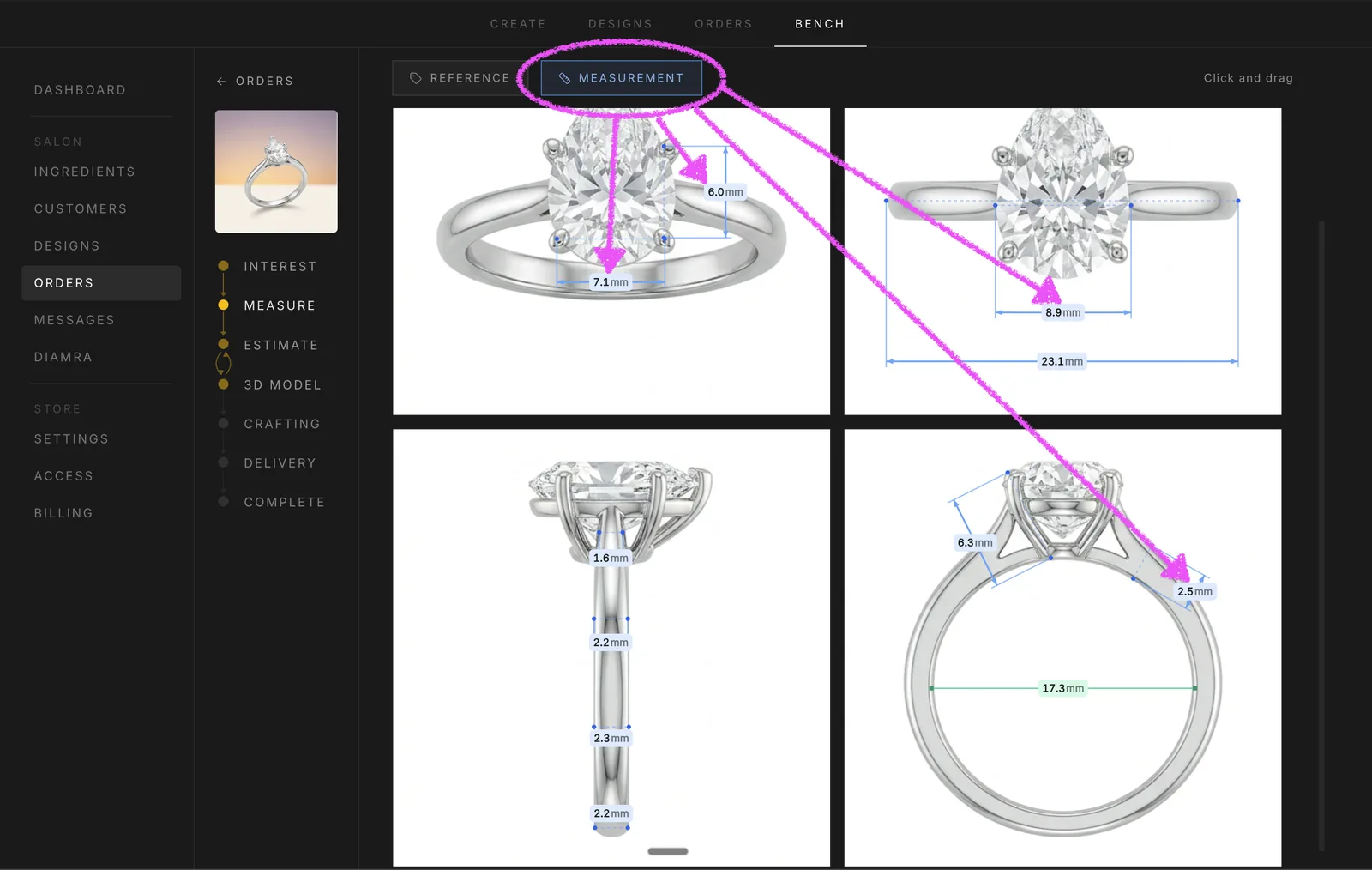
Press Generate Projections. The AI renders the same design from four orthographic angles so you are always looking at the actual piece, not a sketch. You get Front on the top-left, Top on the top-right, Left on the bottom-left, and Bottom on the bottom-right. Give it a few seconds.
Set the scale with a reference line
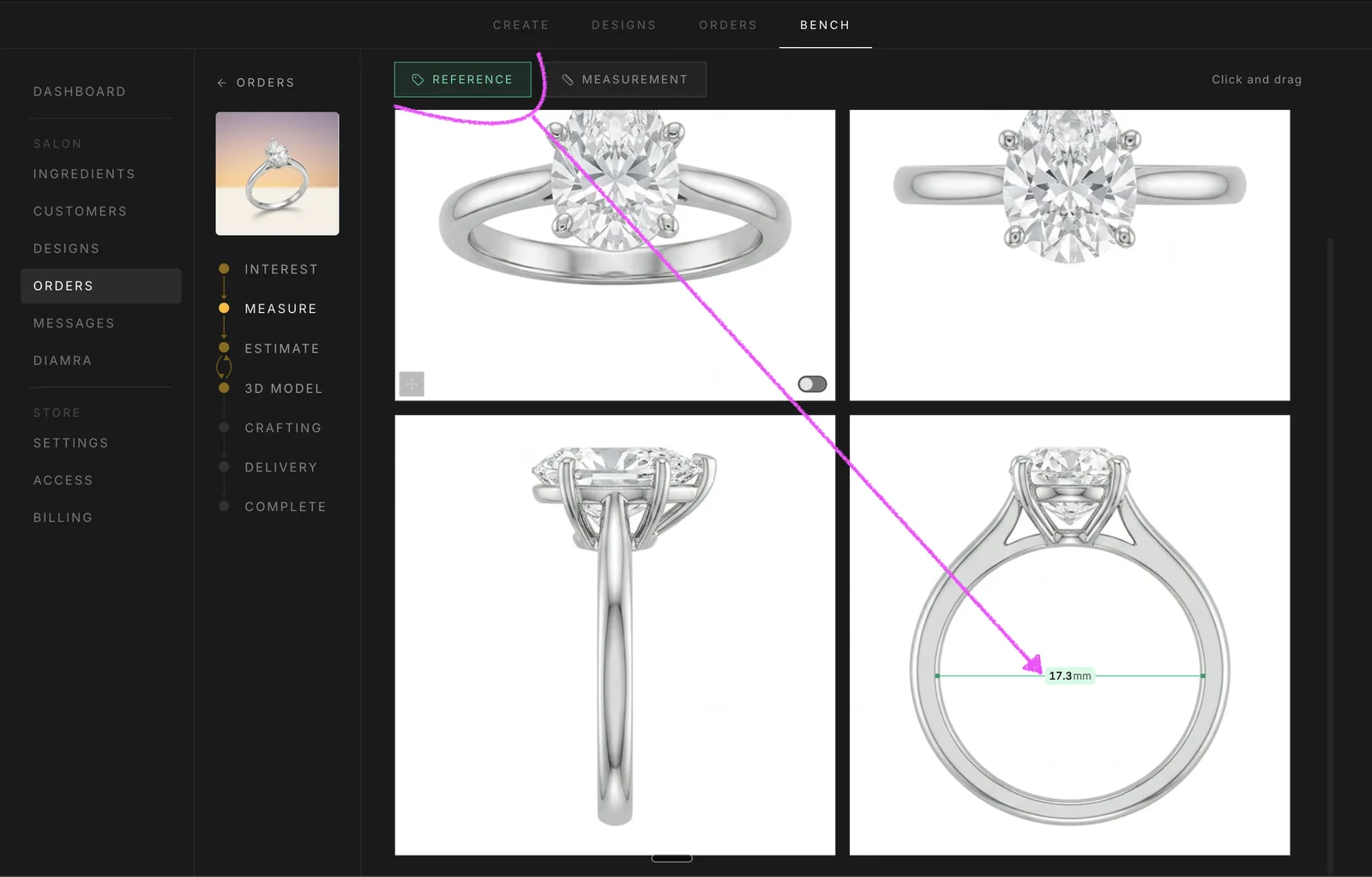
In the header, tap Reference. Pick any projection and draw across one edge you know the real size of. For a ring, the cleanest option is the inner diameter, since ring sizes map directly to it. For a pendant, use the width. For earrings, the length of the post. Type the real value in millimeters and hit enter. That single number sets the scale for every projection, not just this one. You only get one reference line per design, so pick an edge you actually know the size of. If this number is wrong, every measurement that follows is wrong too. The table below gives you the inner diameter for common US and EU ring sizes, so you can read the number straight off and type it in.
Ring size reference
| US size | EU size | Inner diameter |
|---|---|---|
| 4 | 47 | 14.9 mm |
| 5 | 49 | 15.7 mm |
| 6 | 52 | 16.5 mm |
| 7 | 54 | 17.3 mm |
| 8 | 57 | 18.2 mm |
| 9 | 60 | 19.0 mm |
| 10 | 62 | 19.8 mm |
| 11 | 65 | 20.6 mm |
| 12 | 67 | 21.4 mm |
Draw every measurement you want the customer to see
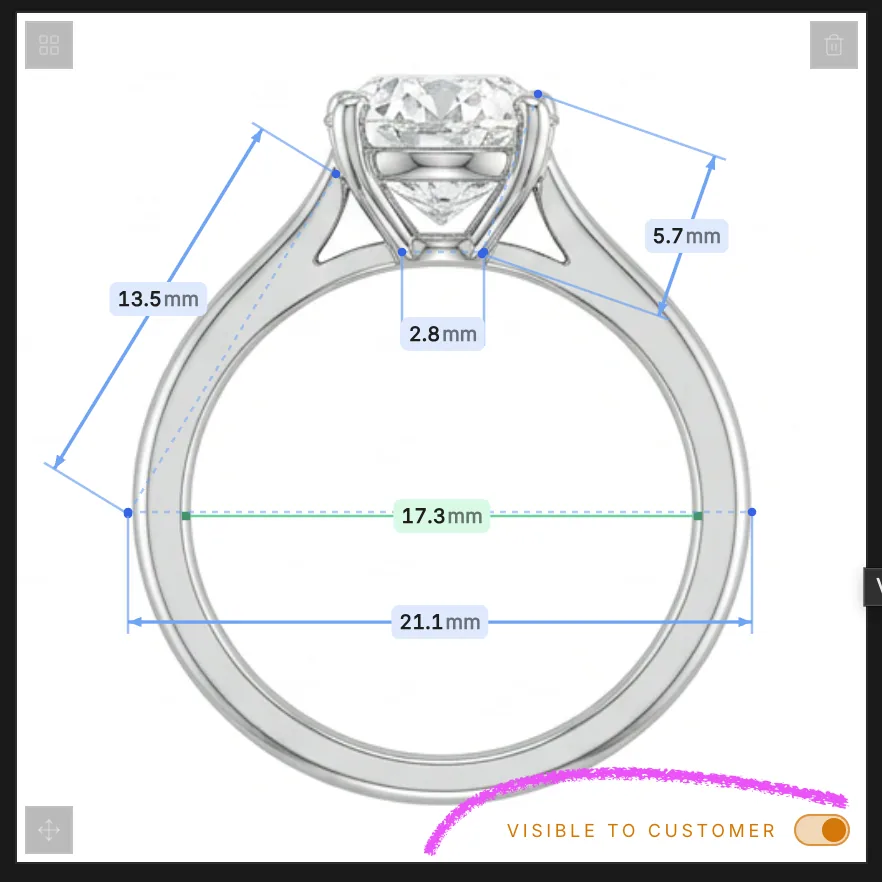
Tap Measurement in the header. The button is blue now that a reference exists. Every measurement goes down the same way as the reference line: click and drag between the two points you want to measure, release, then click once more off to the side to place the callout where it does not cover the piece. Draw as many as you need on any projection. The stone width, the band thickness, the bezel height, the gap between prongs. Every line you draw shows its real size in millimeters right next to it. Hold Shift to snap straight. Hit Escape to cancel a line in progress.
Fix the framing if a view feels off
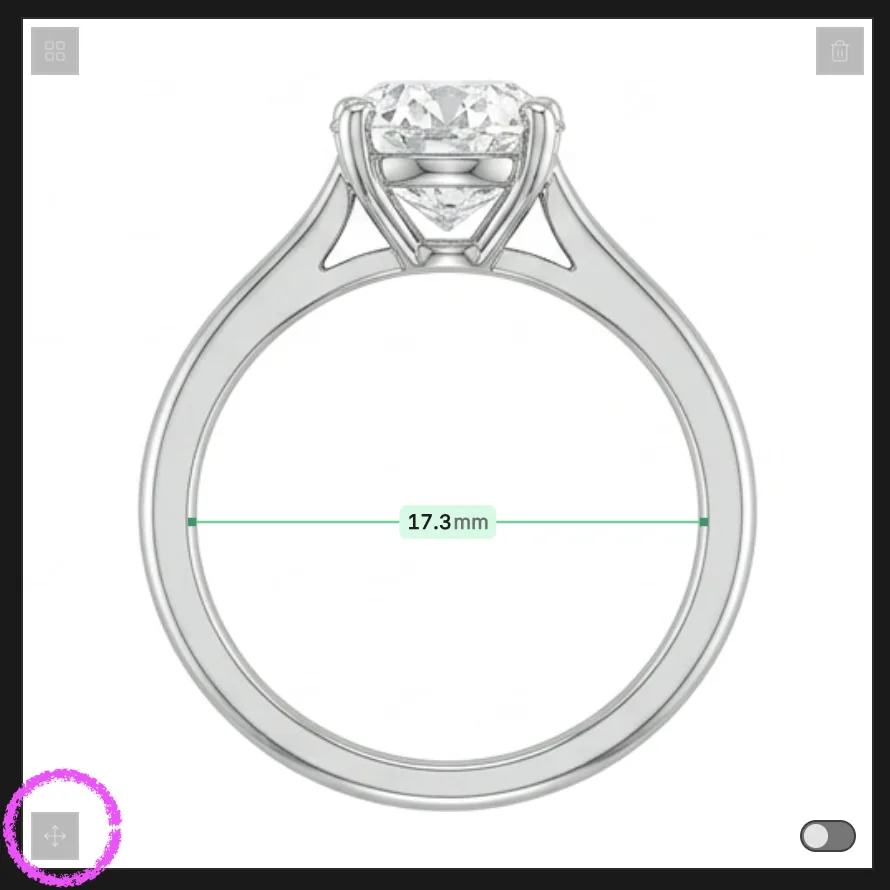
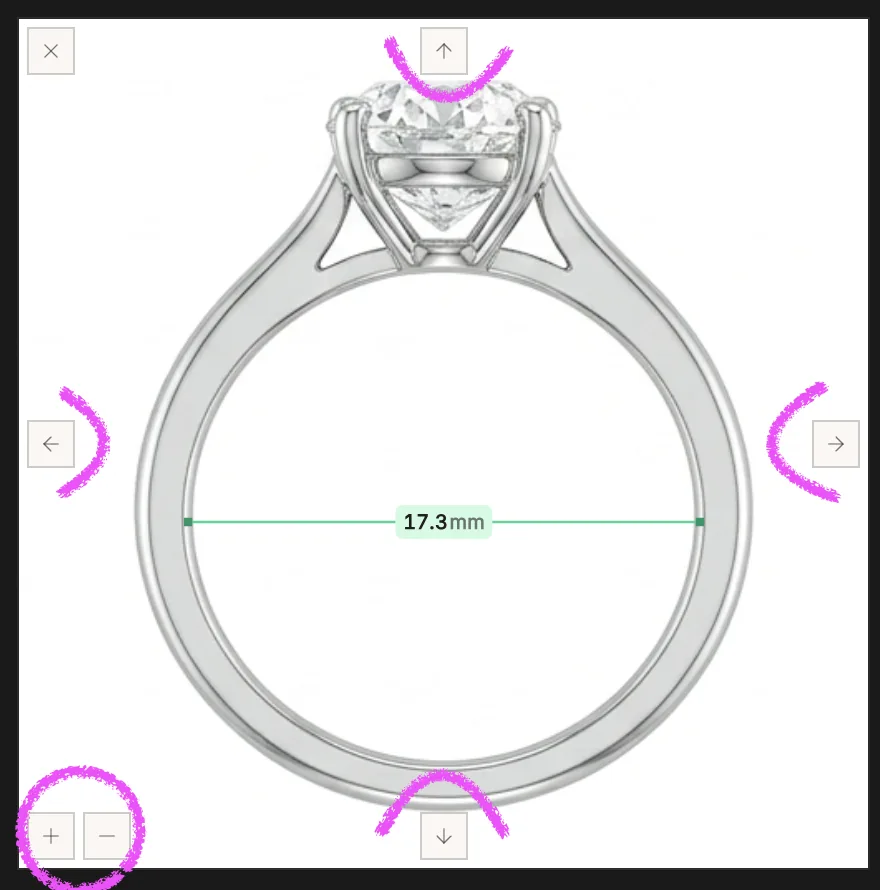
If the AI cropped a view too tight or placed the piece off-center, hover the tile and tap Move. The tile goes into position mode with arrow buttons and zoom controls. The keyboard is faster once you know it. Reset puts everything back if you overshoot.
Swap a view if you want a different angle
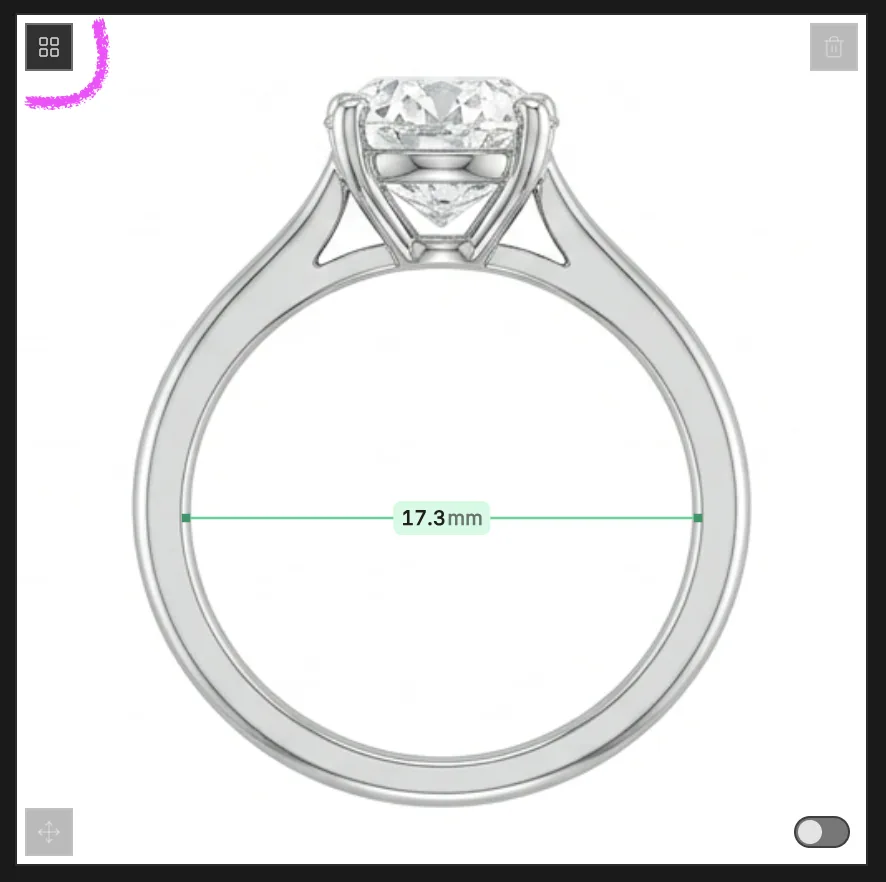
Not every first render nails the angle. Hover any tile and tap the regenerate icon in the top-left. You get a row of variations for that view only. Pick the one you like. The other three stay exactly as they are. Your measurements on the swapped view carry over if the geometry lines up.
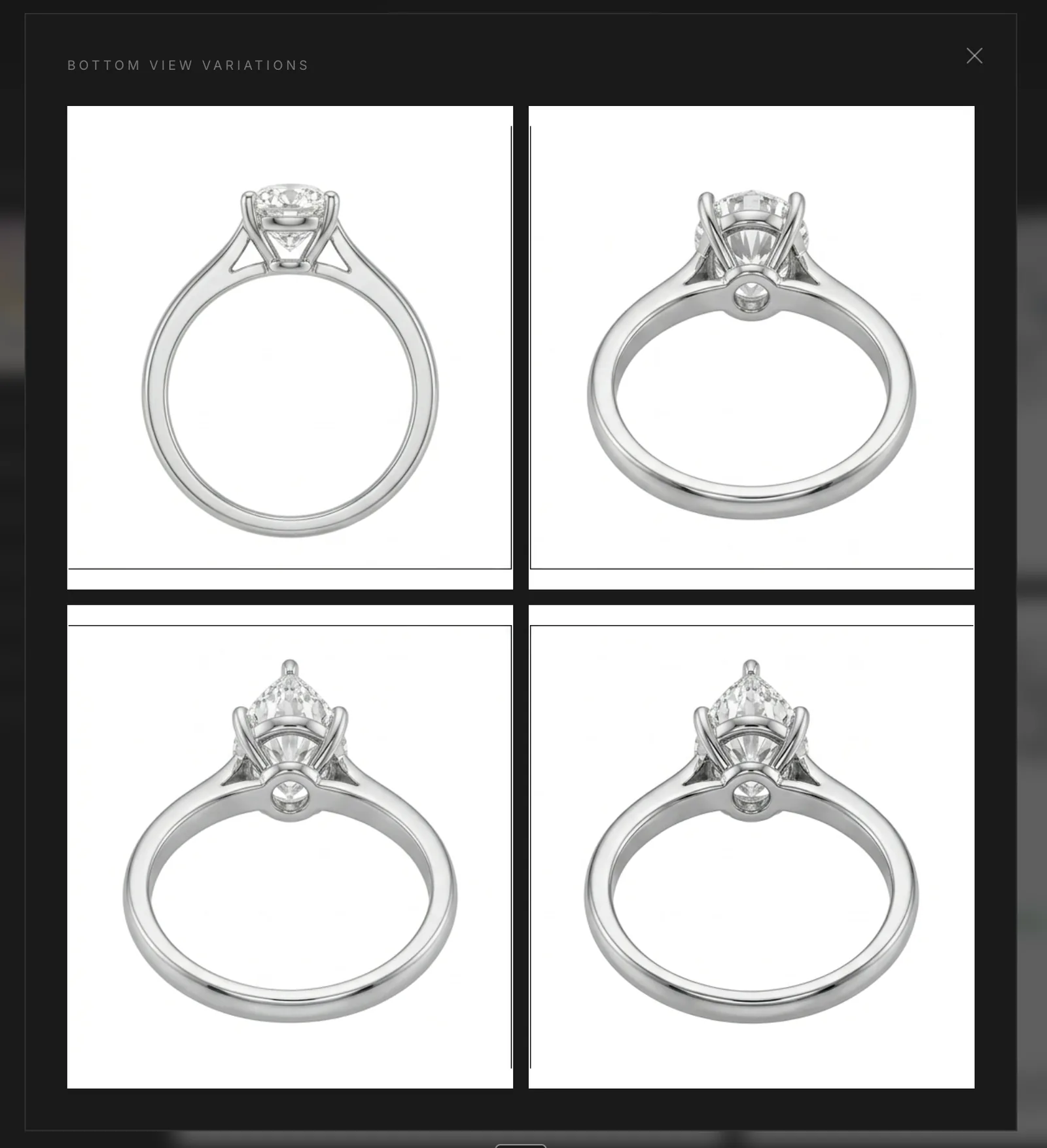
Pick what the customer actually sees
By default every projection is hidden from the customer while you work. When a view is ready, hover it and flip the visibility toggle in the bottom-right. Only toggled projections show up in the order. You can show one, two, or all four, depending on how much the piece needs to be understood from multiple sides. A pendant might only need the front. A ring needs at least three.
That is the whole tool. One reference line sets the scale, every other line rides on it, and the customer opens their order to a piece shown from every side with exact numbers. No more guessing from a single render, no more back-and-forth over DMs about how big the stone is.